
GLP-1 injection reminders: check the plan and the record
An alert can remind you to check your plan. It cannot tell you whether you already took a shot. Keeping those two jobs separate makes both the reminder and your history more useful.
The short answer
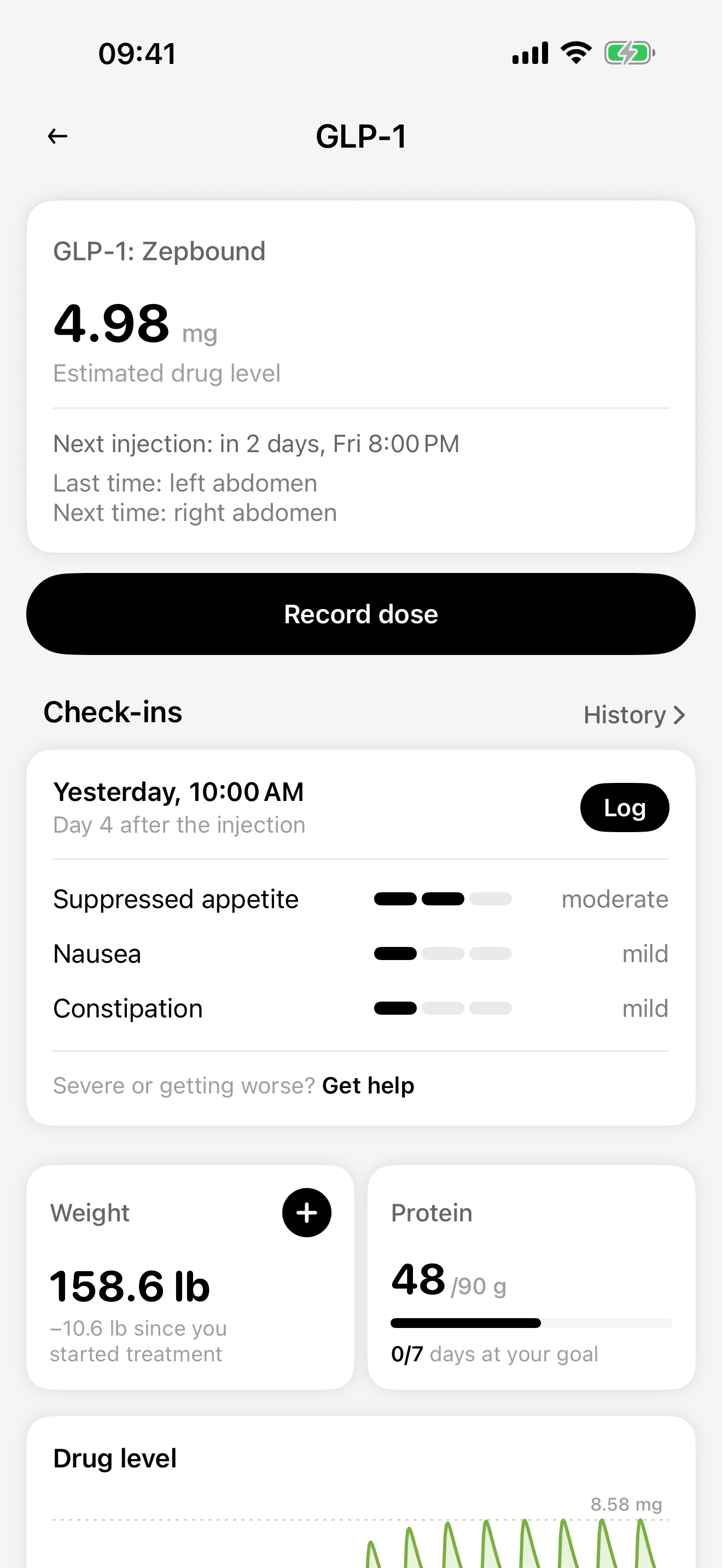
Check that your saved plan matches your prescription, enable GLP-1 reminders in CalZen and allow notifications in your phone’s settings. Record an injection after it actually happens; clearing an alert is not a record of taking medication.
Open the blank injection log →
Check three places during setup
- Your saved plan. Check the exact product, form, prescribed schedule and displayed date and time. A reminder should reflect an existing prescription, not create one.
- CalZen notification settings. Find the GLP-1 section and check the reminder switch. The app includes additional reminder preferences; their availability depends on the saved plan.
- Phone permissions. Allow notifications for CalZen in the phone’s settings. The app screens are shared between iPhone and Android; system permissions are managed outside CalZen.
Review these settings after changing a plan. Do not assume an old alert describes your current prescription.
Check the phone’s notification permission
iPhone: Open Settings → Notifications → CalZen and review the permission and alert presentation. See Apple’s notification guide for system controls.
Android: Open the phone settings, find CalZen under apps or notifications, and check the notification permission. The exact path can vary by device; Google’s guide explains the available system controls.
These are phone settings, not separate ways to use the CalZen screens.
Planned, notified and recorded are different facts
| What you see | What you know | What to check |
|---|---|---|
| A scheduled date | The app has a plan for that date | Whether the saved plan still matches your prescription |
| An alert you opened or dismissed | You interacted with a notification | Your actual medication record |
| No completed entry in history | The diary is incomplete or the event did not happen | Your own reliable notes; do not guess from the alert |
After an injection, save the actual date and time and any other details you know. If you enter it later, check the date before saving so the entry does not accidentally describe the time you opened the app.
If an alert did not appear
Start with the saved plan and the app reminder switch, then check system permissions using the guides above. Review whether the phone is silencing, grouping or delaying alerts.
Look at the notification center or available notification history as well as the Lock Screen. A hidden, silenced or dismissed notification is different from a missing diary entry. These checks do not guarantee delivery of a future alert.
Correct the history without rewriting what happened
If you find a late or mistaken entry, compare it with the information you actually have. CalZen history supports editing and deleting entries. Review the selected date and time, and avoid creating a second entry for the same event.
If you do not know whether an injection happened, an empty history cannot resolve that uncertainty. Contact your prescriber or pharmacist about medication decisions. Do not take an extra dose to make the diary look complete.
Recheck displayed times when circumstances change
Before relying on reminders during travel or after a plan change, review the date and time shown in the plan. Calendar expectations, the phone clock and your prescribed schedule need separate attention.
A tracker does not decide how to move an injection around a trip. Ask your healthcare professional about timing changes and keep their instructions separately from your historical entries.
Keep a fallback you can actually use
The blank injection log linked above works without notification permissions. Keep it somewhere you can find it and record known events with their actual dates. Later, check for duplicates if you also enter them in CalZen.
CalZen provides reminders and personal records. It does not monitor you, confirm medication use or replace the instructions for your prescribed product. If you missed a dose or are unsure what to do, use your product instructions and seek professional advice.
Questions about this record
Does dismissing an alert mark a shot as taken?
Dismissing a notification is not evidence that you took medication. Check and maintain the actual entry in your history.
Can a reminder tell me what to do about a missed dose?
No. The appropriate action depends on your prescribed product and circumstances. Follow its official instructions and ask your prescriber or pharmacist.
Keep your records with CalZen
Medication records, wellbeing, food and weight in one app for iPhone and Android.


Available for iPhone and Android. Features and purchase options may vary by app version and region. Check the app for current access and pricing.